

Google Docs is a versatile word processor that offers a variety of features to enhance your document creation experience. If you’re looking to how to type roman numerals in google docs, whether for page numbers, lists, or simply within the text, this guide will help you navigate the process.
1. Manual Entry
The simplest way to type Roman numerals in Google Docs is to enter them manually. Roman numerals are represented using the following letters: I, V, X, L, C, D, and M. Here’s a quick reference:
– I: 1
– V: 5
– X: 10
– L: 50
– C: 100
– D: 500
– M: 1000
For example, to represent the number “29”, you would type “XXIX”.
2. Using Roman Numerals for Lists:
Google Docs allows you to format lists using Roman numerals:
-
Highlight the list you want to format.
-
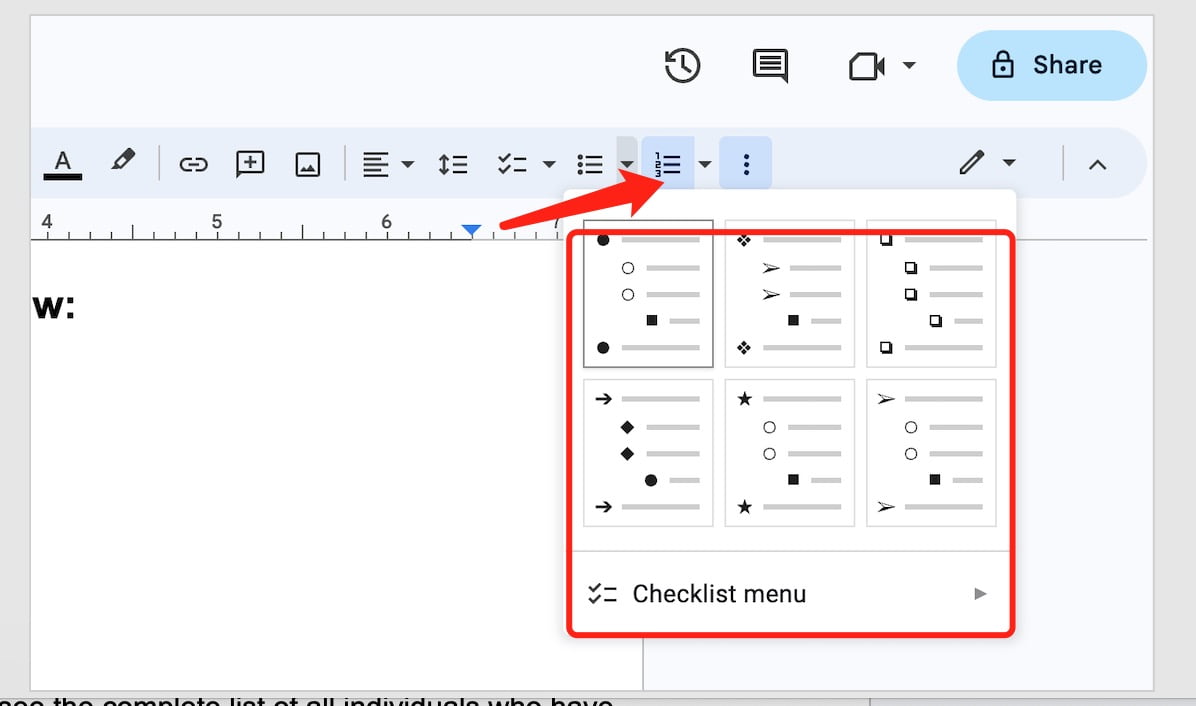
Click on the “Bulleted list” or “Numbered list” icon on the toolbar.
-
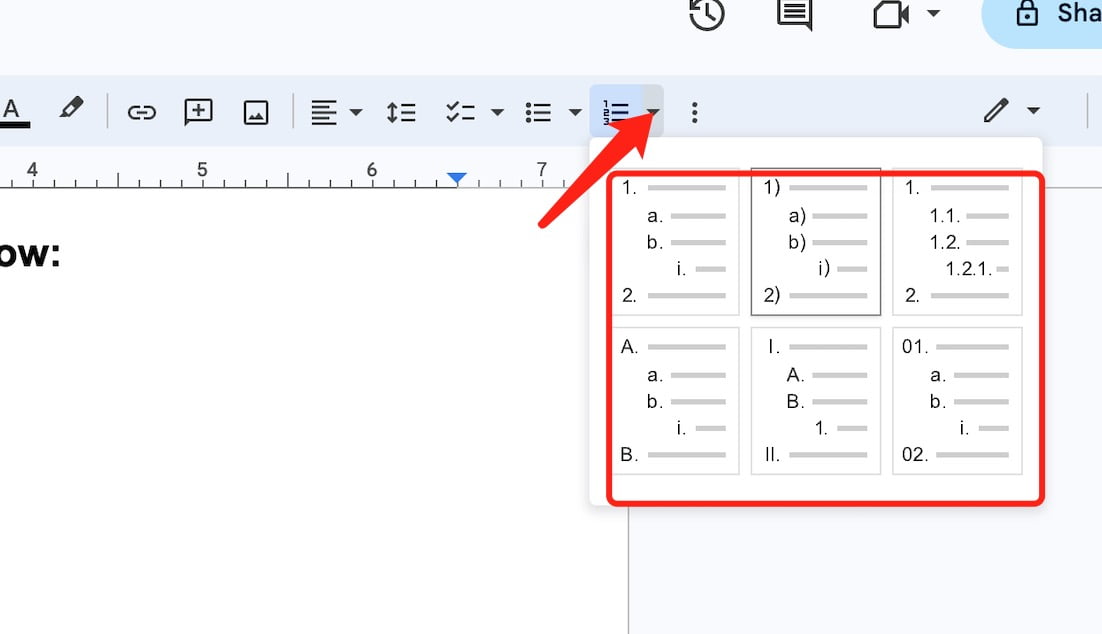
Click on the arrow next to the list icon to reveal a dropdown of styles.
-
Choose the Roman numeral format you prefer (either lowercase or uppercase).
3. Using Roman Numerals for Page Numbers
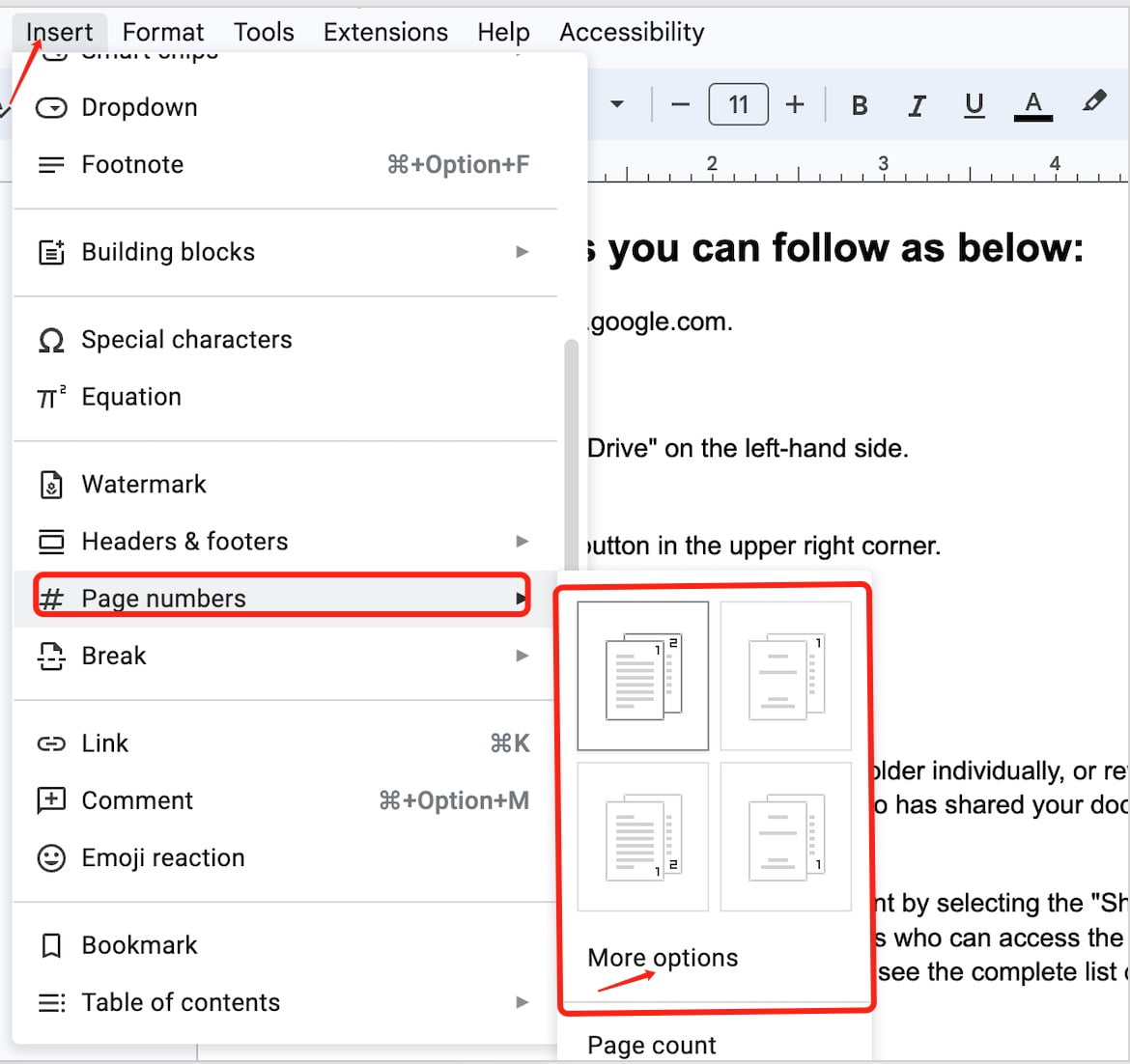
a. Click on “Insert” in the top menu.
b. Navigate to “Page numbers” and then choose the desired format.
c. If none of the default options use Roman numerals, select “More options”.
d. Under the “Format” dropdown, select the Roman numeral option you prefer.
4.Changing the Start Value of Roman Numeral Page Numbers
-
After inserting Roman numeral page numbers, click on the page number in the document.
-
Click on “Format” in the top menu.
-
Navigate to “Paragraph styles” > “Numbered list” > “More options”.
-
In the “Start at” field, input the Roman numeral you wish to start with (e.g., “v” for 5).
5. Tips for Typing Roman Numerals
-
If you’re unfamiliar with Roman numerals, keep a cheat sheet nearby or use online converters to ensure accuracy.
-
For large documents, consider adding a table of contents with Arabic numbers for easier navigation.
While Google Docs doesn’t offer a direct conversion tool for Roman numerals, with the above steps, you can easily integrate them into your document for a variety of purposes. Whether you’re drafting a historical paper or crafting a unique style, Roman numerals can add a touch of classic elegance to your work.
Experience the simplicity of a single click! With our tool, downloading images from Google Docs has never been easier. Dive into a hassle-free workflow and keep every visual right at your fingertips!
You might also like to read:

Written by Mark Dean
Explore Zeus App, a Chrome extension that helps you effortlessly download images from Google Docs. Join Mark Dean's blog for more practical tech tips and formatting solutions.
More Helpful Guides & Tips

how to add a bullet point in google docs
Have you ever found yourself wondering 'how to add a bullet point in Google Docs' while drafting a document? You're not alone. Let's dive into a simple guide that answers exactly that. Open Your Document Navigate to Google Docs and open the document you want to edit. Place the Cursor Click in the location within

How to Highlight in a Google Doc
Have you ever found yourself working on an important document and needed to emphasize certain sections or phrases? Learning how to highlight in a Google Doc , allowing you to clearly mark and visually prioritize information.1.Open a Document What Highlight in a google docTo begin your journey on how to highlight a

How to Delete Custom Colors in Google Docs
Have you ever wondered how to delete custom colors in Google Docs? Whether you've added colors that no longer fit the aesthetic of your document or simply want a clean slate, understanding the process can be quite useful. Read on as we delve into the steps and nuances of managing your color palette in Google